
A deleted mailbox, an overwritten SharePoint folder or a compromised Microsoft 365 account can stop work far more quickly than many businesses expect. To set up Microsoft 365 backup properly, you need more than default retention settings. You need a separate, recoverable copy of the data your people rely on, alongside a clear plan for who can restore it and how quickly.
For SMEs, the aim is straightforward: reduce downtime, protect business records and avoid turning a routine mistake or security incident into a lengthy disruption. The right backup arrangement should support day-to-day recovery as well as more serious events.
Why Microsoft 365 needs a separate backup
Microsoft 365 provides excellent availability and includes useful retention, version history and recycle-bin features. These services help protect the platform itself, but they are not the same as an independent backup service designed around your business’s recovery requirements.
The practical distinction matters when a user permanently deletes a file, an administrator applies the wrong policy, or ransomware encrypts data that then synchronises across OneDrive and SharePoint. Retention settings may help in some cases, but their coverage, duration and recovery options depend on how they were configured in advance. They can also be difficult to manage under pressure.
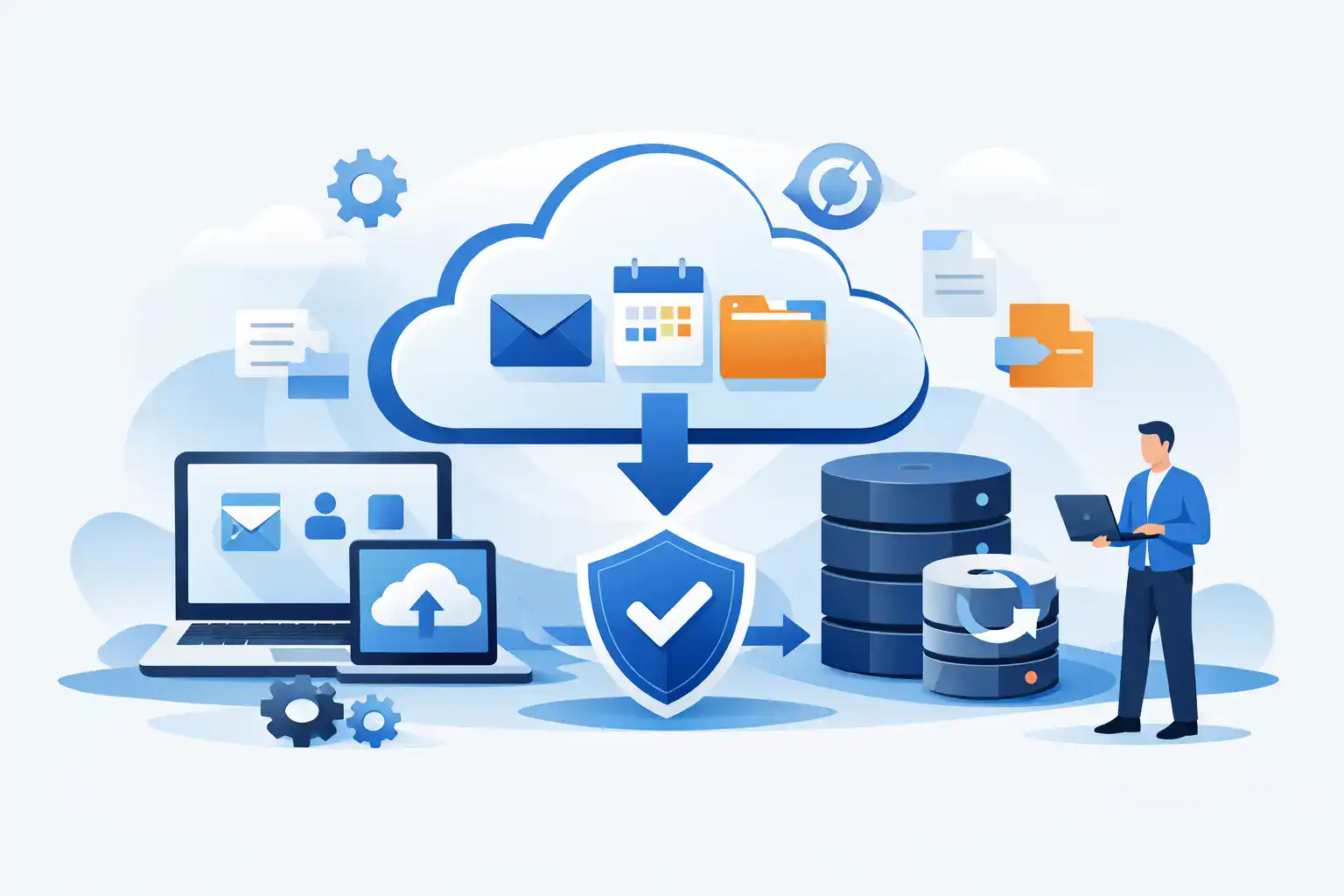
A dedicated Microsoft 365 backup keeps a separate copy of selected data and gives authorised staff a more direct route to restore individual items, folders, mailboxes or larger sets of information. It also gives the business greater control over how long information is retained.
Decide what your backup must protect
Before selecting or configuring a solution, identify the Microsoft 365 services that hold operationally important information. For most organisations, this includes Exchange Online mailboxes, OneDrive for Business, SharePoint Online sites and Microsoft Teams data.
Exchange Online is often critical for customer communications, invoices, contracts and internal decisions. OneDrive protects individual users’ working files, while SharePoint usually contains shared documentation, procedures and departmental records. Teams can hold conversations, channel files and meeting-related content that staff depend on to continue projects.
Do not assume every account needs the same policy. A director’s mailbox, finance SharePoint site and employee OneDrive may have different retention needs. Former employee data also needs careful handling. Decide whether it should remain available for a defined period, be transferred to a manager, or be securely removed in line with your data retention policy.
Set recovery objectives before choosing retention periods
Backup decisions are business decisions as much as technical ones. Two questions make the requirements clearer:
- How much recent work can the business afford to lose?
- How quickly must key data be available again?
The first question is your recovery point objective. If backups run once each day, a restored item may be up to a day old. The second is your recovery time objective. Restoring one email is very different from restoring a large SharePoint library after a widespread incident.
For many SMEs, daily backups with long-term retention provide a sensible starting point. Businesses handling regulated records, financial information or contractual documentation may need more frequent protection or longer retention. There is a trade-off: more frequent backup, broader coverage and longer storage usually increase cost and management requirements. The right choice is the one that reflects the impact of losing the data, not simply the lowest subscription price.
Choose a backup service that supports practical recovery
A Microsoft 365 backup service should cover the workloads you use today and leave room for the way your organisation may work tomorrow. Check precisely what is backed up within Teams, particularly where conversations, private channels, shared files and associated SharePoint content are concerned.
Look for granular restore options. Your team should be able to recover a single email, calendar item, contact, file or folder without restoring an entire mailbox or site. Full-site and bulk recovery options are equally valuable when an incident affects a wider area.
Security controls deserve the same scrutiny as backup coverage. Use a provider that supports multi-factor authentication, role-based access and clear audit logging. Backup administration should not rely on one employee’s personal account. Where available, use separate administrative credentials and apply least-privilege access so that only authorised people can change policies or start restores.
Data location, encryption and retention controls should also be reviewed against your contractual and compliance obligations. If you work with sensitive customer information, ask where backup data is stored, how it is encrypted, and what happens when the service agreement ends.
How to set up Microsoft 365 backup step by step
The technical setup will vary by provider, but the process should follow a controlled sequence rather than a quick installation followed by assumptions.
1. Confirm the data scope and ownership
Create an inventory of the users, shared mailboxes, Microsoft 365 groups, Teams and SharePoint sites that require protection. Include high-value sites such as finance, HR, management and client project areas. Assign a business owner for each key data set, so backup decisions do not sit solely with IT.
This is also the time to identify inactive accounts and obsolete sites. Backing up clutter indefinitely raises cost and makes future recovery more confusing. Retain what the business needs, not everything by default.
2. Connect the backup platform securely
Most services use Microsoft 365 permissions or an application connection to access the required workloads. Follow the provider’s documented permission model, use a dedicated administrator account where appropriate, and enable multi-factor authentication for every privileged account.
Keep a record of who approved the connection, what permissions were granted and where the recovery console is accessed. This gives your business an audit trail and makes handover easier if staff responsibilities change.
3. Apply retention policies that match business needs
Set the retention period for each workload or group of users. A single company-wide policy can be easier to manage, but it may not suit every department. For example, project collaboration spaces may only need to be retained for a set contract period, while finance records may require a longer schedule.
Avoid confusing backup retention with your wider information governance policy. Backup is there to recover data. It should not become an uncontrolled archive that keeps personal or confidential information forever. Review retention choices with the people responsible for compliance, finance and operations.
4. Run the first backup and check coverage
The initial backup may take longer than subsequent runs, especially where there are years of mail and large document libraries. Monitor its completion and investigate exclusions, errors or unusually small data volumes. A successful connection is not proof that every important service is protected.
Check a representative sample: a user mailbox, a shared mailbox, a OneDrive account, a SharePoint site and an active Team. Confirm that the expected data is visible in the backup console and that the backup schedule is running as intended.
Test restores before an incident forces the issue
A backup that has never been restored is an assumption, not a recovery plan. Schedule controlled restore tests at least annually, and more often for critical systems or after significant Microsoft 365 changes.
Test the restore scenarios that are most likely to affect your business. Recover a deleted email to its original mailbox, restore an earlier version of a document, recover a folder to an alternative location, and confirm that authorised staff can access the restored information. Record the time taken, any permissions issues and whether users can work with the restored data as expected.
This testing should include communication. Staff need to know whom to contact if they delete important data or suspect an account compromise. Quick reporting can make recovery simpler, particularly where native recycle-bin and version history windows are also available.
Build backup into your wider security plan
Microsoft 365 backup is one layer of business continuity, not a substitute for account security. Use multi-factor authentication, strong identity controls, device protection and phishing awareness training alongside it. If an attacker gains access to a privileged account, they may attempt to delete data and interfere with recovery arrangements.
Maintain a short recovery runbook that explains who can authorise restores, who performs them, how stakeholders are informed and when an incident should be escalated. It should be accessible even if normal collaboration systems are unavailable. Keep recovery contacts outside the affected Microsoft 365 environment where possible.
For businesses without dedicated internal IT resources, a managed partner can monitor backup status, investigate failures and support recovery when timing matters. Host-It helps Dublin SMEs bring Microsoft 365 protection, cybersecurity and continuity planning into one accountable support arrangement.
The most useful backup is the one your business can recover from calmly, quickly and with confidence. Put the policy in place, test it with real scenarios, and revisit it whenever your people, data or working practices change.