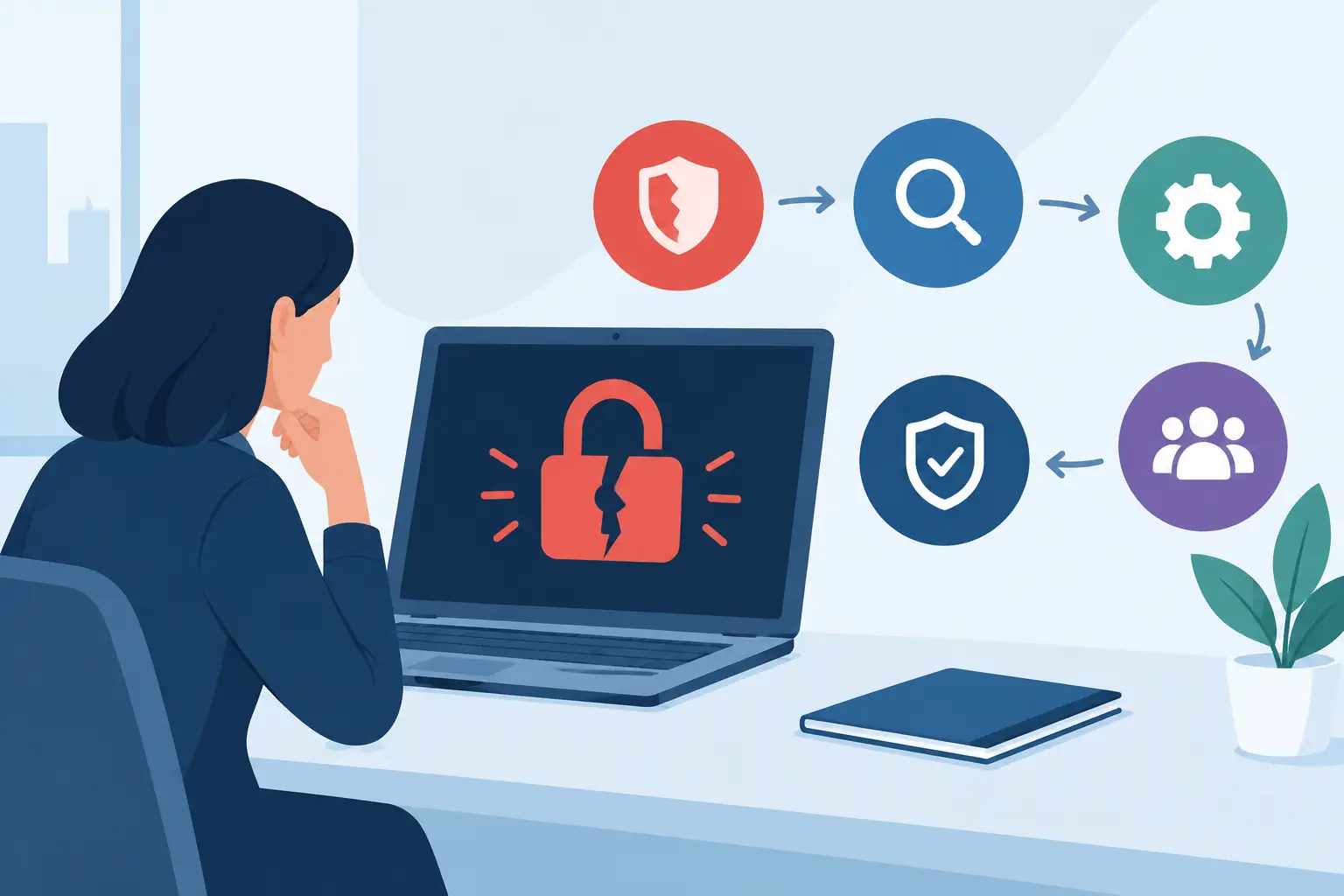

A laptop left in a taxi, stolen from a car or misplaced during an office move should be an inconvenience, not a reportable data breach. Knowing how to encrypt business laptops gives your organisation a practical layer of protection: if the device falls into the wrong hands, the files stored on it remain unreadable.
For most SMEs, full-disk encryption is one of the quickest security improvements available. It protects documents, saved credentials, local copies of customer information and emails without changing how staff work day to day. But switching it on is only part of the job. The real protection comes from deploying it consistently, storing recovery keys safely and making encryption part of a wider endpoint security process.
What laptop encryption protects – and what it does not
Full-disk encryption converts data on a laptop’s storage drive into unreadable information unless the device is unlocked with an authorised sign-in method or recovery key. On Windows, this is usually provided by BitLocker. On Apple Mac devices, the equivalent is FileVault.
When a properly encrypted laptop is powered off, a thief cannot simply remove the drive, connect it to another machine and browse its contents. This matters because lost devices are a common route to data exposure, particularly for staff working remotely, travelling or moving between client sites.
Encryption does not stop every threat. If a staff member is signed in and is tricked by a phishing email, malware can still access files available to that user. It also does not replace backups, multi-factor authentication, endpoint protection or staff awareness training. Think of it as protection for data at rest: information stored on the device when it is not in use.
Choose the right encryption method for your laptops
The best choice normally depends on the operating systems already in your business. Avoid introducing separate encryption tools unless there is a clear compliance or technical reason to do so. Native tools are generally easier to manage, support and recover.
Windows laptops: use BitLocker
BitLocker is built into many business editions of Windows, including Pro, Enterprise and Education. It uses the laptop’s Trusted Platform Module, or TPM, to help confirm that the device has not been tampered with before releasing the encryption key at start-up.
For most business laptops, BitLocker with TPM protection and a PIN at start-up offers a sensible balance between security and usability. Requiring a PIN adds another barrier if a device is stolen, although it also means staff need to enter it before Windows loads. For lower-risk office devices, TPM-only protection may be acceptable when paired with strong user sign-in controls.
Windows Home editions can have limited device encryption features, but they are not ideal for a managed business estate. Standardising on Windows Pro or Enterprise gives IT administrators greater control over BitLocker settings, recovery keys and reporting.
Mac laptops: use FileVault
FileVault provides full-disk encryption for supported Macs. When enabled, it encrypts the Mac’s internal storage and requires an authorised account to unlock it at start-up. Modern Apple silicon devices integrate encryption closely with their hardware, but FileVault should still be enabled and centrally managed.
A key decision is how recovery works. Do not rely on an employee keeping the only recovery key. If they leave the company, forget their credentials or the Mac has a fault, the business could lose access to its own data. A managed Apple environment should escrow recovery keys securely through an appropriate device management platform.
Prepare before you encrypt business laptops
Encryption is usually straightforward, but preparation reduces disruption and prevents avoidable lockouts. First, take a verified backup of important data. Encryption is designed to protect information, not recover it after a failed drive, accidental deletion or ransomware incident.
Next, check each laptop is supported, fully patched and has a healthy storage drive. For Windows devices, confirm that the TPM is active and that the correct edition of Windows is installed. Older devices may need a BIOS or firmware update before BitLocker can be enabled reliably.
You should also decide who owns the recovery process. Recovery keys must be accessible to authorised IT personnel, not buried in an individual’s inbox, written on a label or saved only on the encrypted laptop itself. A central, access-controlled record is essential.
Before rollout, set a clear policy covering which devices must be encrypted, whether a start-up PIN is required, where recovery keys are stored and what staff should do if they are prompted for recovery. This is particularly useful during staff changes, device replacements and urgent support incidents.
A practical rollout process
For a small number of devices, encryption can be enabled manually. For a growing business, a centrally managed rollout is safer and more efficient. A typical deployment follows these steps:
- Inventory all laptops, including home-working and executive devices that may not regularly visit the office.
- Confirm each device is patched, backed up and assigned to the correct employee or department.
- Configure BitLocker or FileVault settings through your device management platform.
- Escrow recovery keys in a secure business-controlled location and restrict access to authorised support staff.
- Enable encryption in stages, beginning with a pilot group, then monitor for errors or recovery prompts.
- Record compliance status so that unencrypted, inactive or non-compliant devices can be identified quickly.
A pilot is worthwhile even in a small business. It tests whether a planned setting causes problems with older hardware, docking stations, BIOS configuration or staff workflows. Once the approach is proven, the same policy can be applied consistently across the rest of the fleet.
Recovery keys are the part businesses often overlook
A recovery key is not an optional administrative detail. It is the safety net that allows authorised support staff to regain access when a laptop detects a security change, a user forgets a start-up PIN or hardware is replaced.
The risk works both ways. If recovery keys are poorly protected, someone with access to them may be able to unlock a stolen device. If they are not retained at all, the business may permanently lose valuable data. Store them centrally, protect access with role-based permissions and keep an audit trail of who retrieves a key and why.
For Microsoft environments, recovery key handling can be integrated with business identity and device management services. For Macs, an Apple-focused management platform can securely retain FileVault recovery keys. The technical platform matters less than the principle: keys should belong to the business and be available when needed, without being widely exposed.
Keep encryption part of a wider laptop security standard
A laptop can be encrypted and still create risk if it is unmanaged. Security controls work best as a joined-up standard rather than a collection of isolated settings.
Require strong sign-in controls, including multi-factor authentication for cloud services. Apply operating system and application updates promptly. Use managed endpoint protection to identify malware and suspicious activity. Limit local administrator rights, as unrestricted admin access makes it easier for users or attackers to weaken security controls.
Remote lock and wipe capabilities should also be considered, especially for staff who travel or work from home. These controls cannot always guarantee that a device will reconnect after it is lost, which is why encryption remains vital. It protects the data even when the laptop never comes back online.
Finally, maintain an accurate asset register. When a staff member leaves, their laptop should be recovered, checked, securely wiped or reassigned, and removed from their accounts. When devices reach end of life, arrange certified data destruction rather than treating old drives as ordinary electronic waste.
How to check that encryption is actually working
Do not assume that encryption has been enabled because a policy was created. Verify it. On Windows, IT administrators can check BitLocker protection status and confirm that recovery information has been stored correctly. On Macs, confirm FileVault status and that a valid recovery key is escrowed in the management system.
Review this information routinely, not only after a device is lost. Exceptions occur when a laptop has been rebuilt, replaced, taken offline for a long period or issued outside the usual onboarding process. Regular reporting lets you resolve gaps before they become an incident.
For SMEs without an internal IT team, managed monitoring can remove much of this administrative burden. Host-It can help Dublin businesses standardise laptop encryption, retain recovery controls and maintain visibility across Windows and Mac devices as part of a wider security and support service.
A protected laptop should be routine, not a last-minute response after a loss. Set the standard before the next device leaves the office, and your business will be better placed to keep working while its data stays protected.